










💬 Booking Notification (Auto)
Effective communication with your mobile team is essential for smooth daily operations. This guide explains how to set up and send automated SMS notifications from the Scheduler to alert your team about the day's activities. By configuring a custom SMS template, you can include dynamic fields—such as BookingDate—that will automatically populate when messages are sent. Follow the steps below to build, save, and use your SMS template for team alerts.
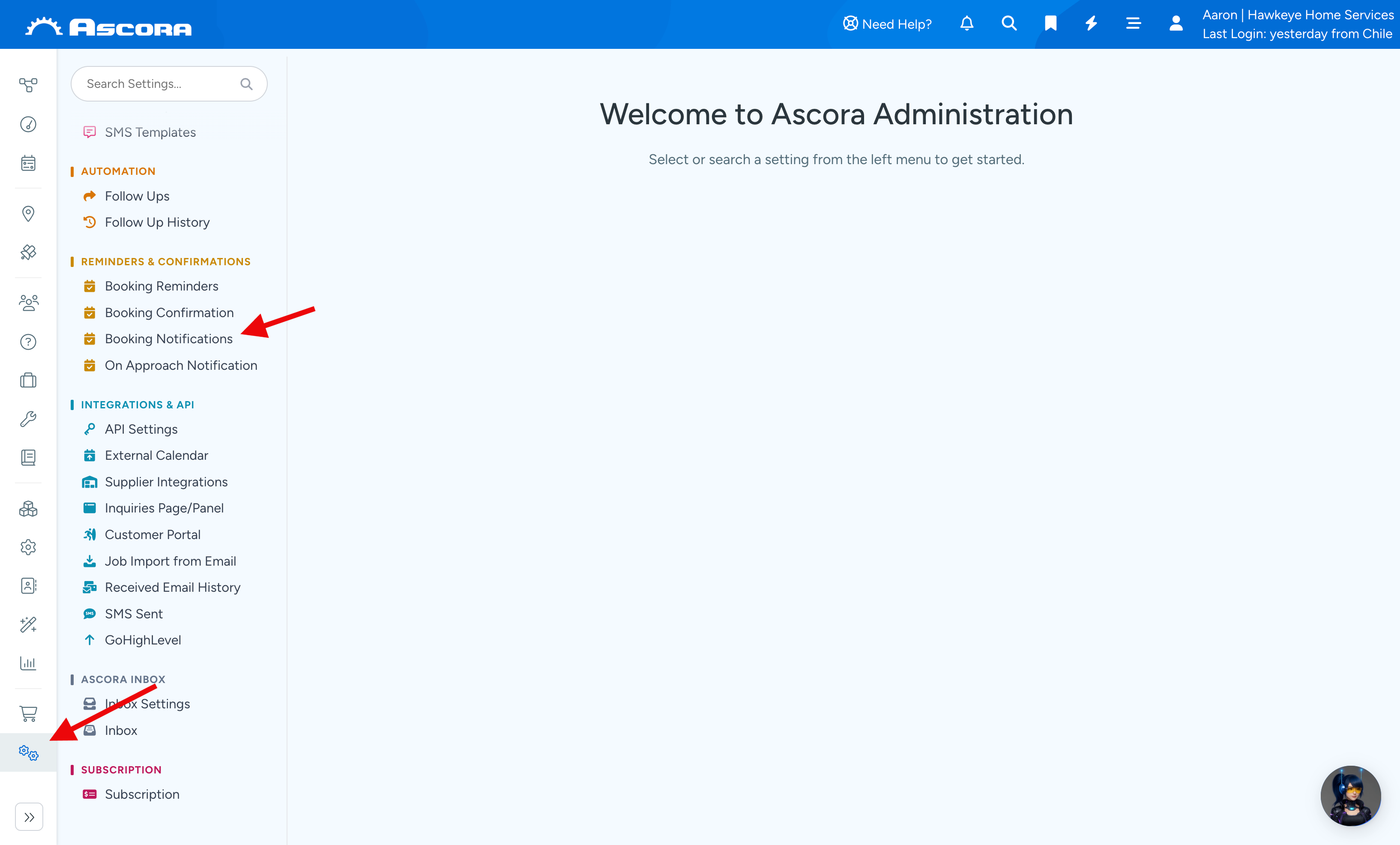
1. Go to Administration → Booking Notifications
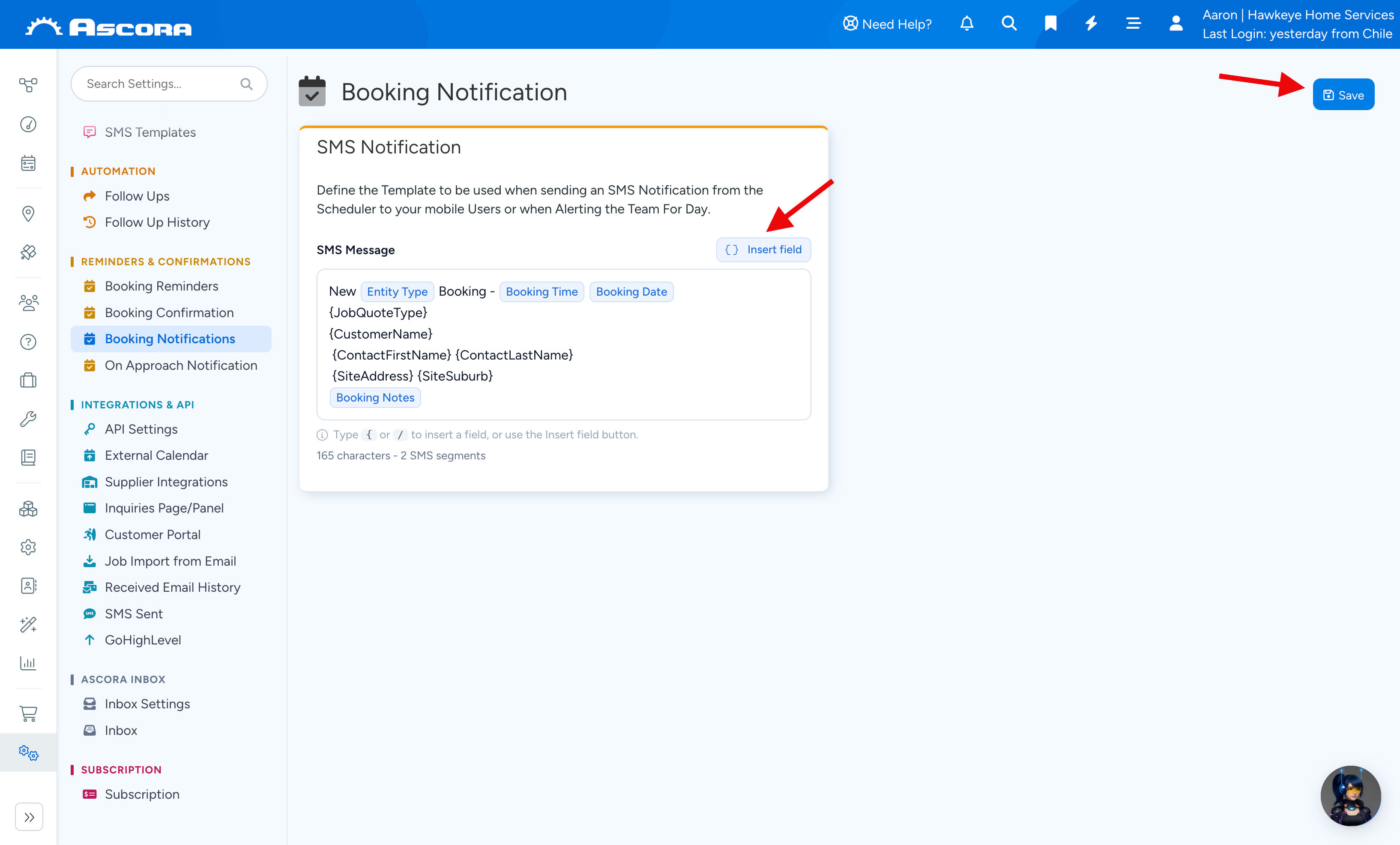
2. Build your SMS template by adding dynamic fields from "Insert field". Once you're done building your SMS template, click Save button located on the upper right part of the screen.
Sending SMS Booking Confirmation
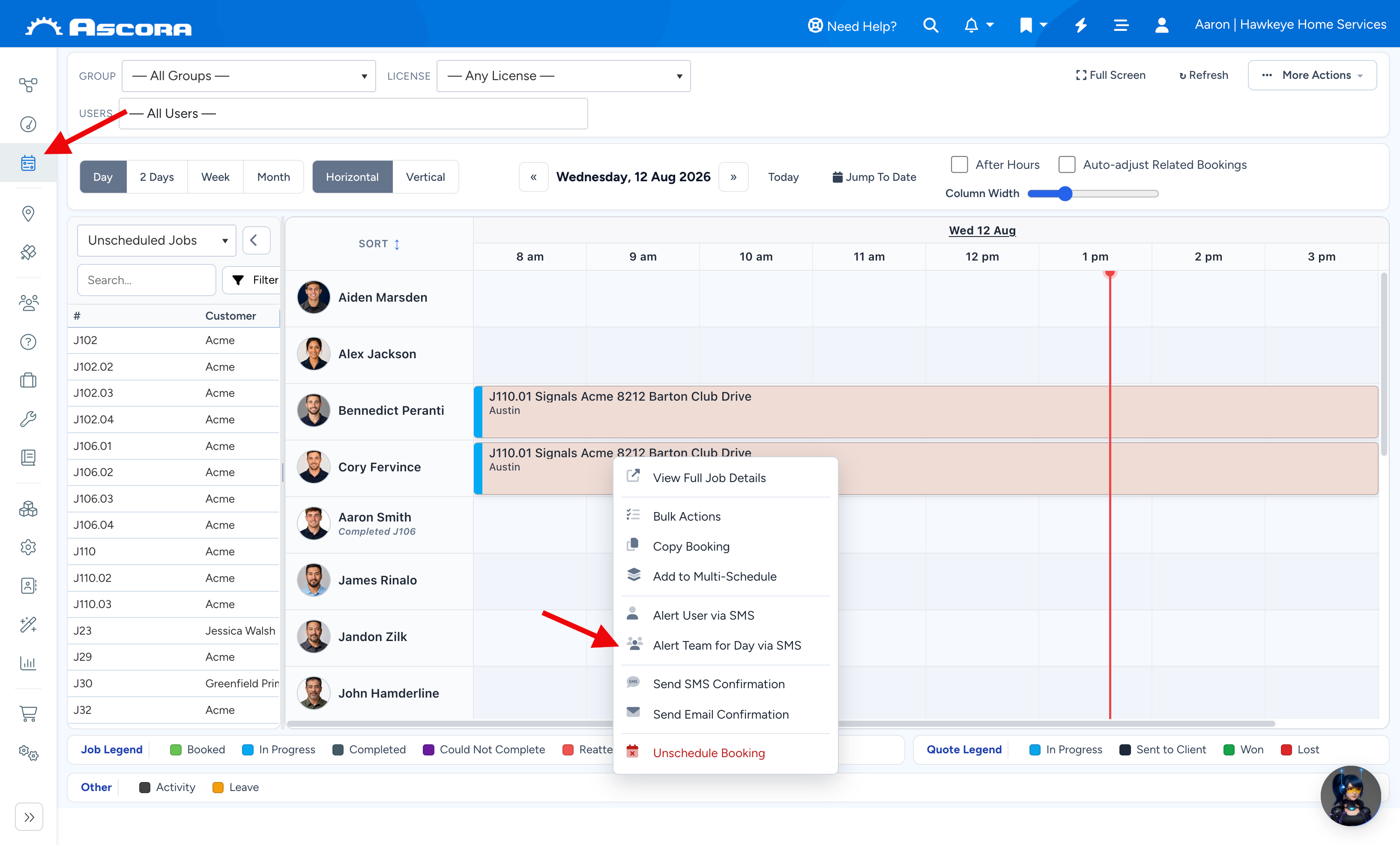
1. Go to Scheduler and right click on a job then select Alert Team For Day via SMS.
2. Ensure the box beside Include Standard Template is ticked then click Send.
Sub Pages
Got a question?
Submit an Idea
💡 Go to Ideas Portal
Was this article helpful?
Contact support