











🧾 How to Change Statement Reference Fields
Statement Document format is standard across Ascora accounts which means that formatting cannot be changed unlike Document Templates such as Invoice and Quote document template.
However, you can change the Statement Reference Fields and there is a few of available options to choose from.
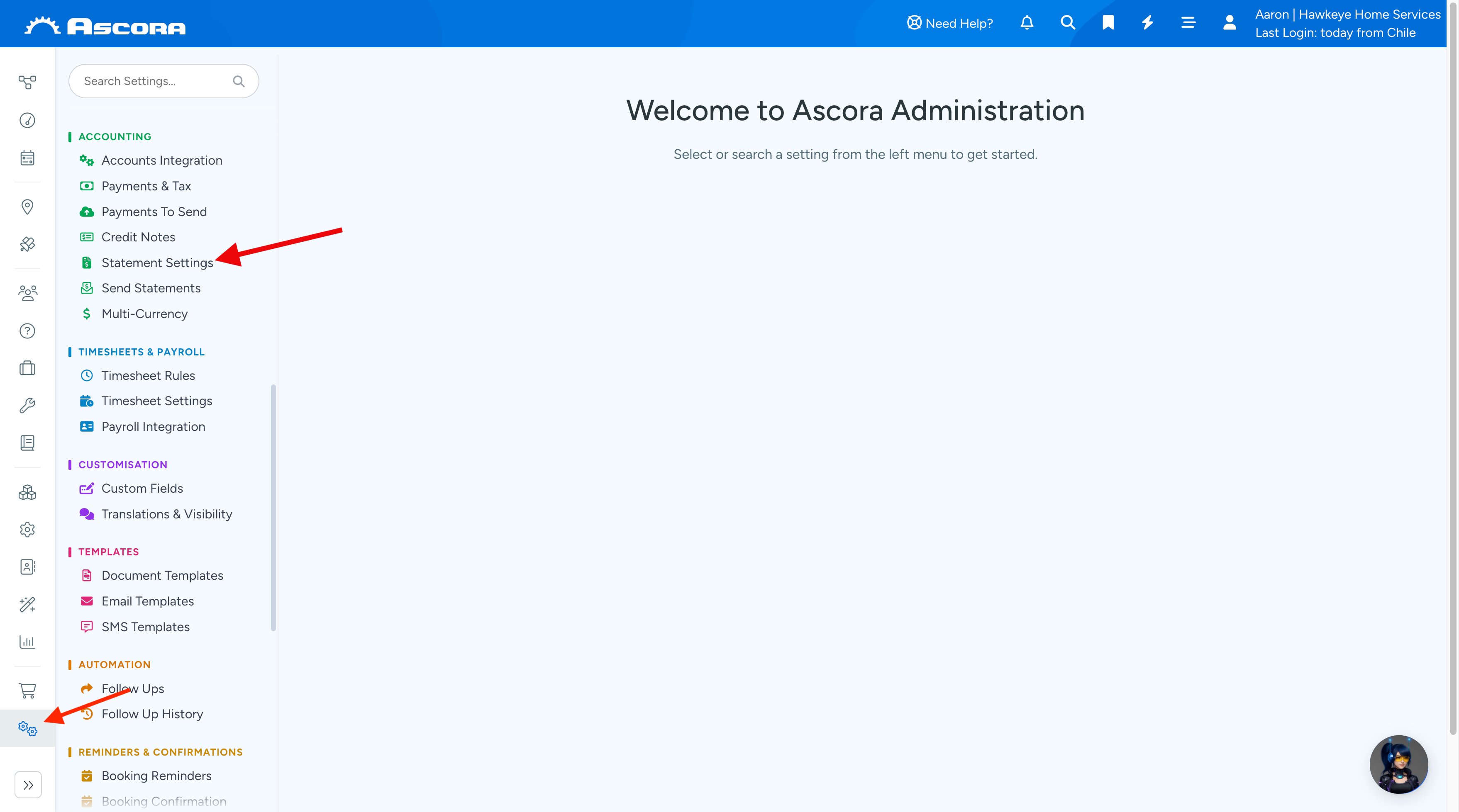
1. Go to Administration → and click Statement Settings under Settings area.
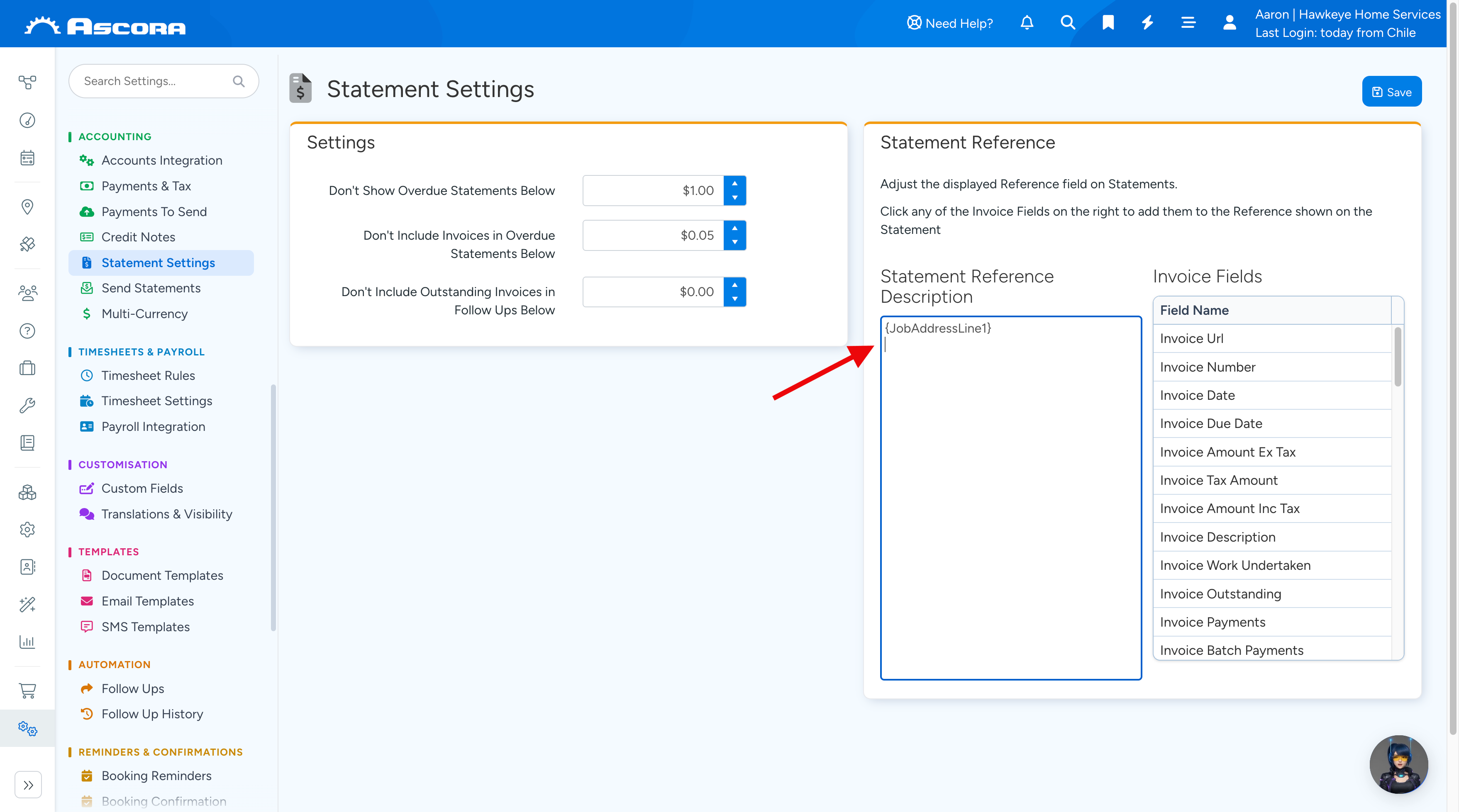
2. Point the mouse cursor on the panel below Statement Reference Description where you want to add the fields and click the field name located on the right panel below Invoice Fields to add it.
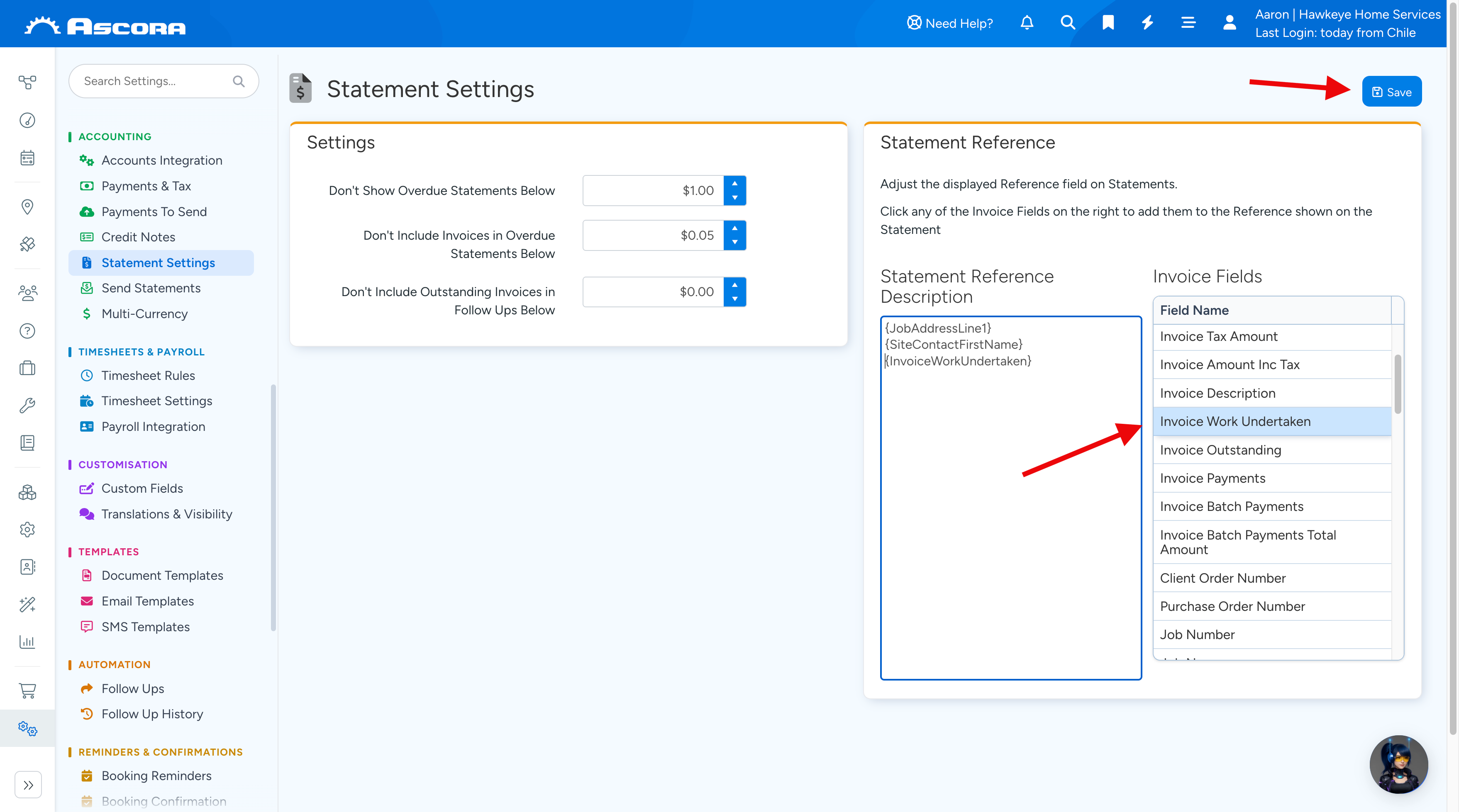
In this example, we've added the fields called SiteContactFirstName and InvoiceWorkUndertaken below JobAddressLine1.
Once happy with the changes, Click Save.
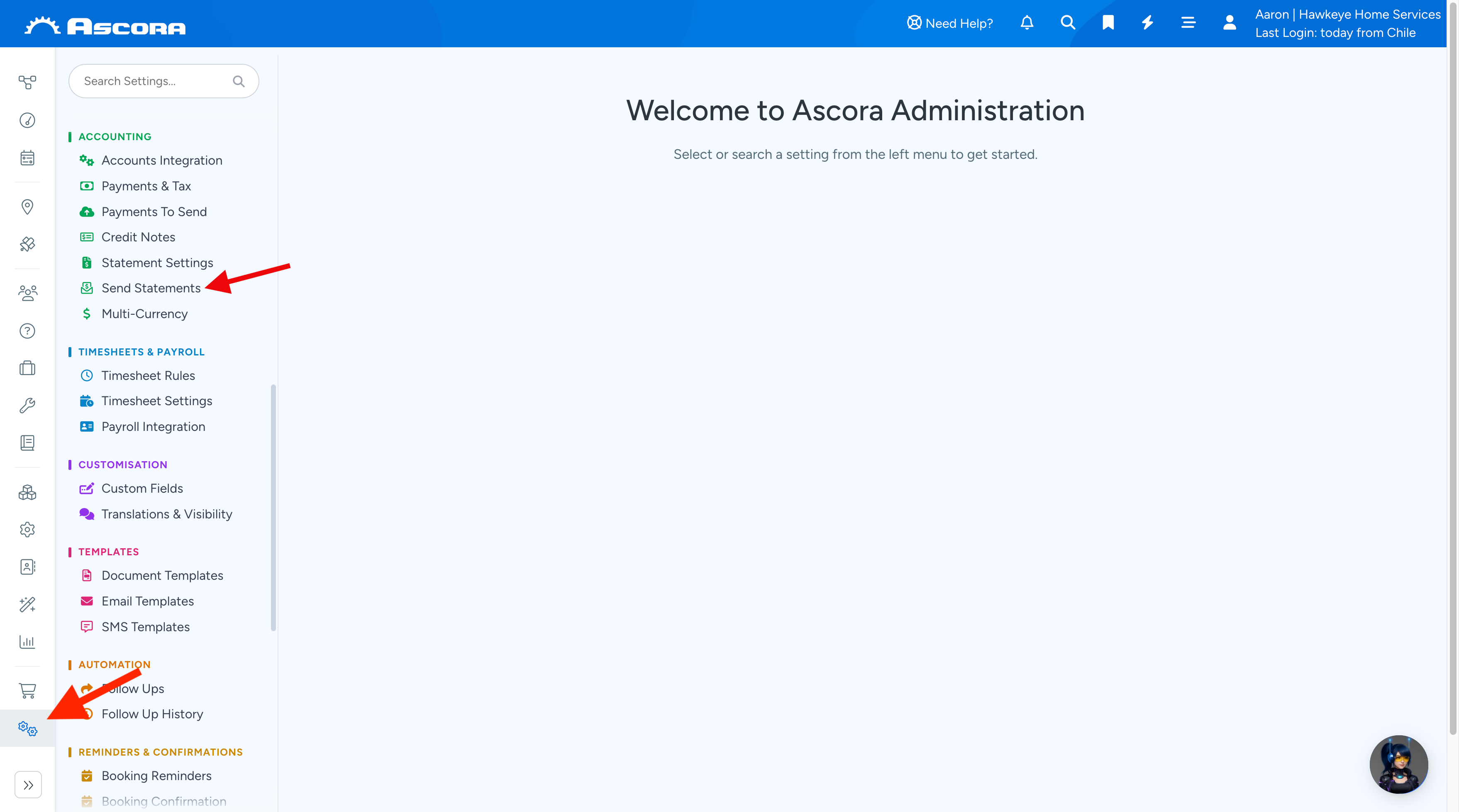
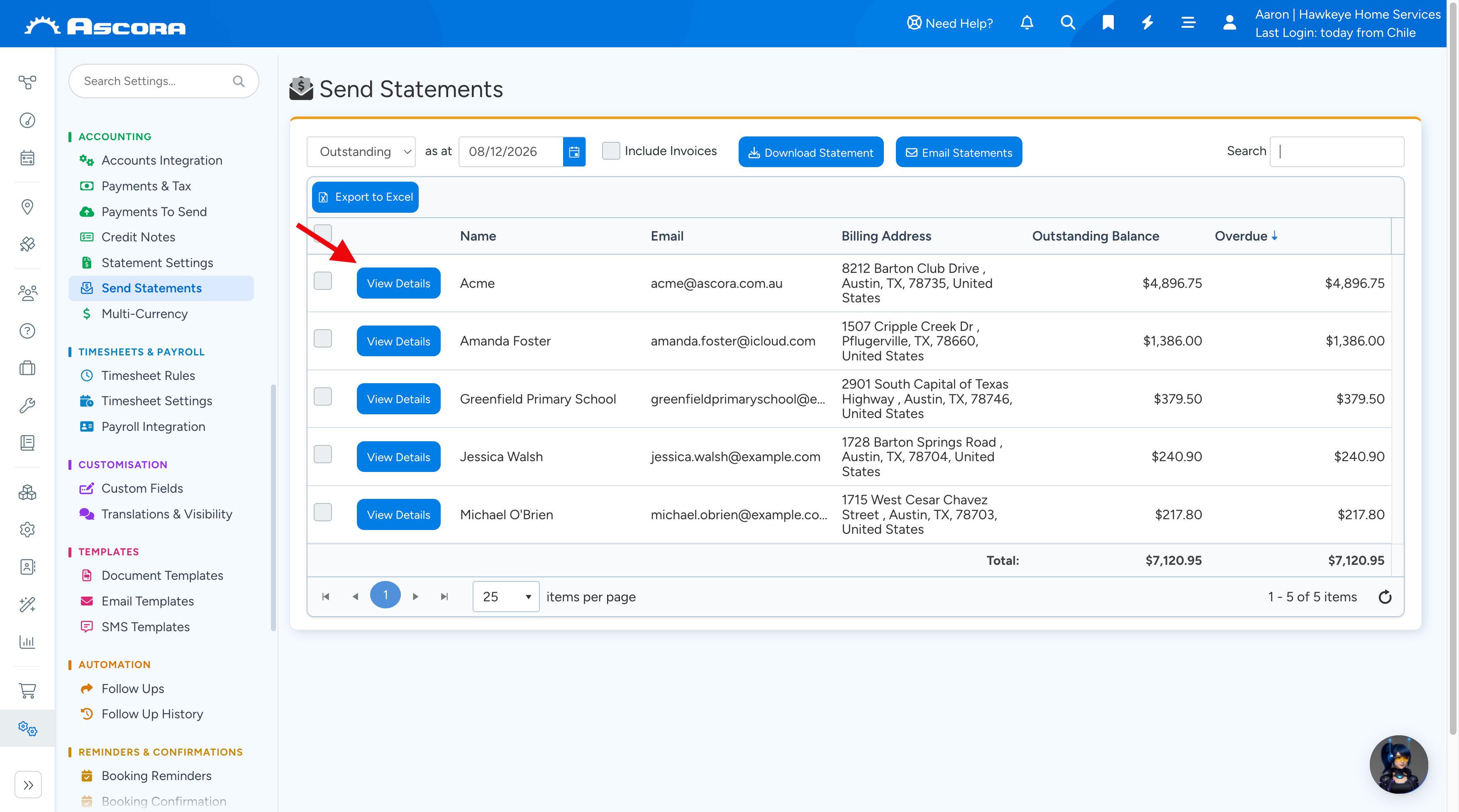
3. Go to Administration → and click Send Statements under Accounting area.
4. Click View Details beside the Customer name and click on Download Statement.
5. You should now see the new reference fields we've added which are SiteContactFirstName and InvoiceWorkUndertaken. You can repeat the process to either remove or add more reference fields.

Sub Pages
Was this article helpful?
Contact support